










We've updated checklists. What used to be limited to the Standard plan is now available on every plan, including Free and Light.
In web production and operations, there are checks you want to run every single time you write feedback — whether wording is consistent, whether any links are broken, whether placeholder text was left behind. Unglamorous, but you can't skip them.
When those checks live in someone's memory or a document off to the side, what gets checked changes from person to person, and things slip through. Checklists keep that knowledge inside MONJI+ as a standard the whole team shares, rather than something each person carries.
1. Register on the checklist screen, then use it as you write feedback
Add the items your team wants to check on the project's Checklist screen. When someone creates feedback, the items registered at that moment appear as that feedback's checklist, ready to tick off as they go.
Set it up once; use it every time you write feedback. As the checks accumulate in MONJI+, a change of hands no longer means a change in what gets reviewed.
For the steps from registering an item to using it, see how to use checklists.
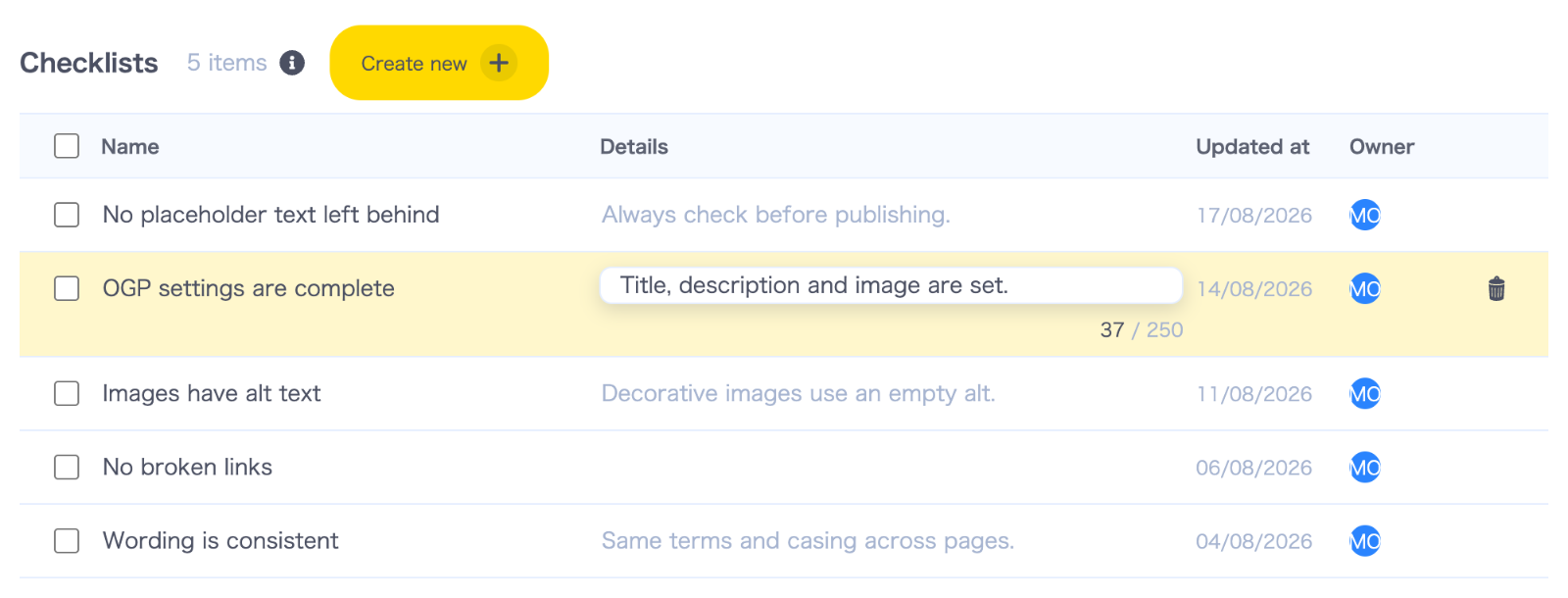
2. Click an item in the list and edit it right there
We rebuilt the screen so that clicking the item name or details turns that cell into an input. It saves when you press Enter or click elsewhere, so there's no save button. Press Esc to discard.
Creating a new item happens in the list too, so when you notice "we check this every time as well," you can add it on the spot.
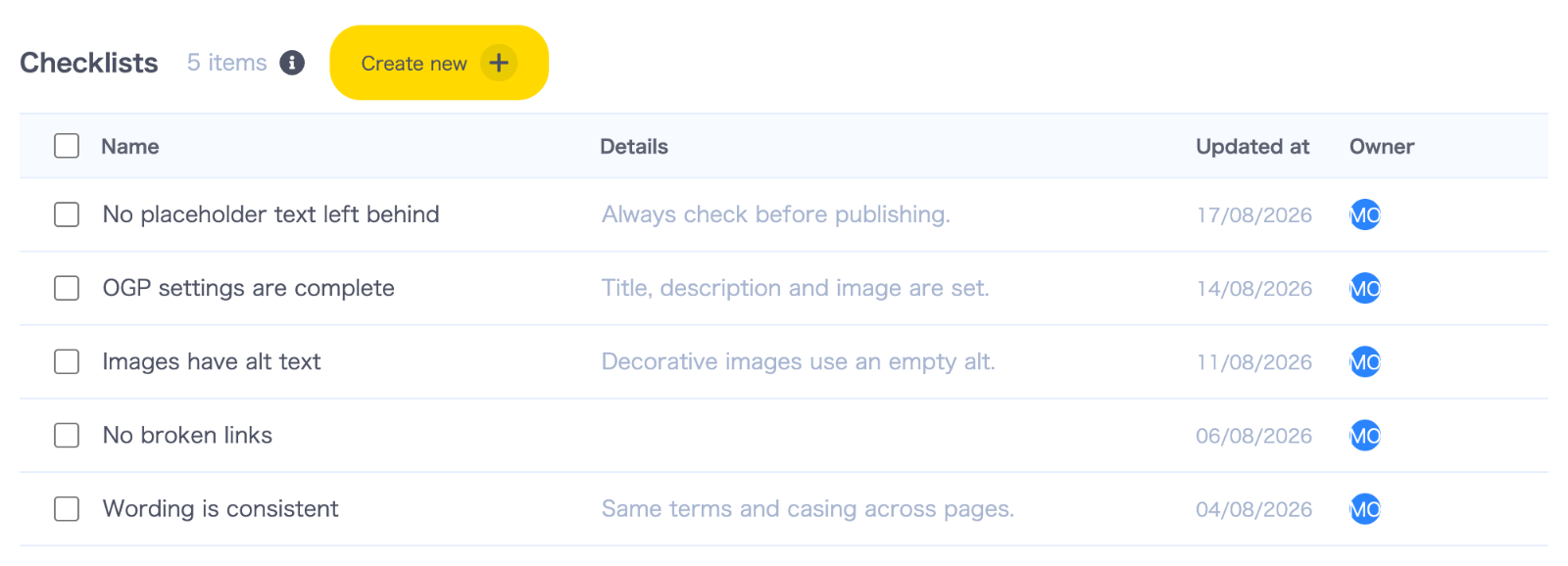
3. See item name, details, last updated, and owner at a glance
The list now shows what's registered and who updated it when. You can also select several items and delete them together, which keeps a growing list manageable.
Start with just five items
There's no need to build the perfect checklist up front. Begin with five checks you already run every time.
Wording is consistent / No broken links / Images have alt text / OGP settings are complete / No placeholder text left behind
Start small and revise as your work demands, and the list grows into something that fits your team.
Checklists are available from "Checklist" inside a project. Note that a feedback's checklist reflects the items registered at the moment that feedback was created; items you add later appear in feedback created from then on.
Step-by-step instructions are in how to use checklists.
Checklists are available on desktop only.