









Feedback
No more Excel sheets, handwritten notes, or phone calls.

No more "missed feedback" or "work delays".
We clear the common stress of web updates in one go.

Create & Send Feedback

 Documenting fixes in PowerPoint or Excel, exporting to PDF, emailing, then confirming by phone—
you’re buried in low-productivity work...- Fixes keep coming back different from what you intended, and the work never ends...
- And of course, when you’re busiest,
you get calls just to confirm instructions... - After sending a request, you still get
“Any update on that fix?” — unnecessary follow-ups...

Receiving & Handling Feedback

 You can’t tell where the instructions are written,
wasting over 10 minutes just searching...- Feedback come by phone so often that
your work gets interrupted repeatedly... - Images and handwritten notes are scattered,
making the request hard to decipher... - You can’t track progress on fixes,
leading to missed tasks and rework...
With  ,
,
Reduce the time spent on edit feedback by 1/5.
Excel, handwritten notes, PowerPoint, PDFs, emails…you don’t need any of them
Everyone can track progress in real time—no more “I didn’t know”
Fewer back-and-forth cycles for feedback, reviews, and fixes → cut review time to 1/5 and reduce human errors
Both "Create & Send" and "Receive & Respond" to feedback in just 3 steps
Create & Send Feedback
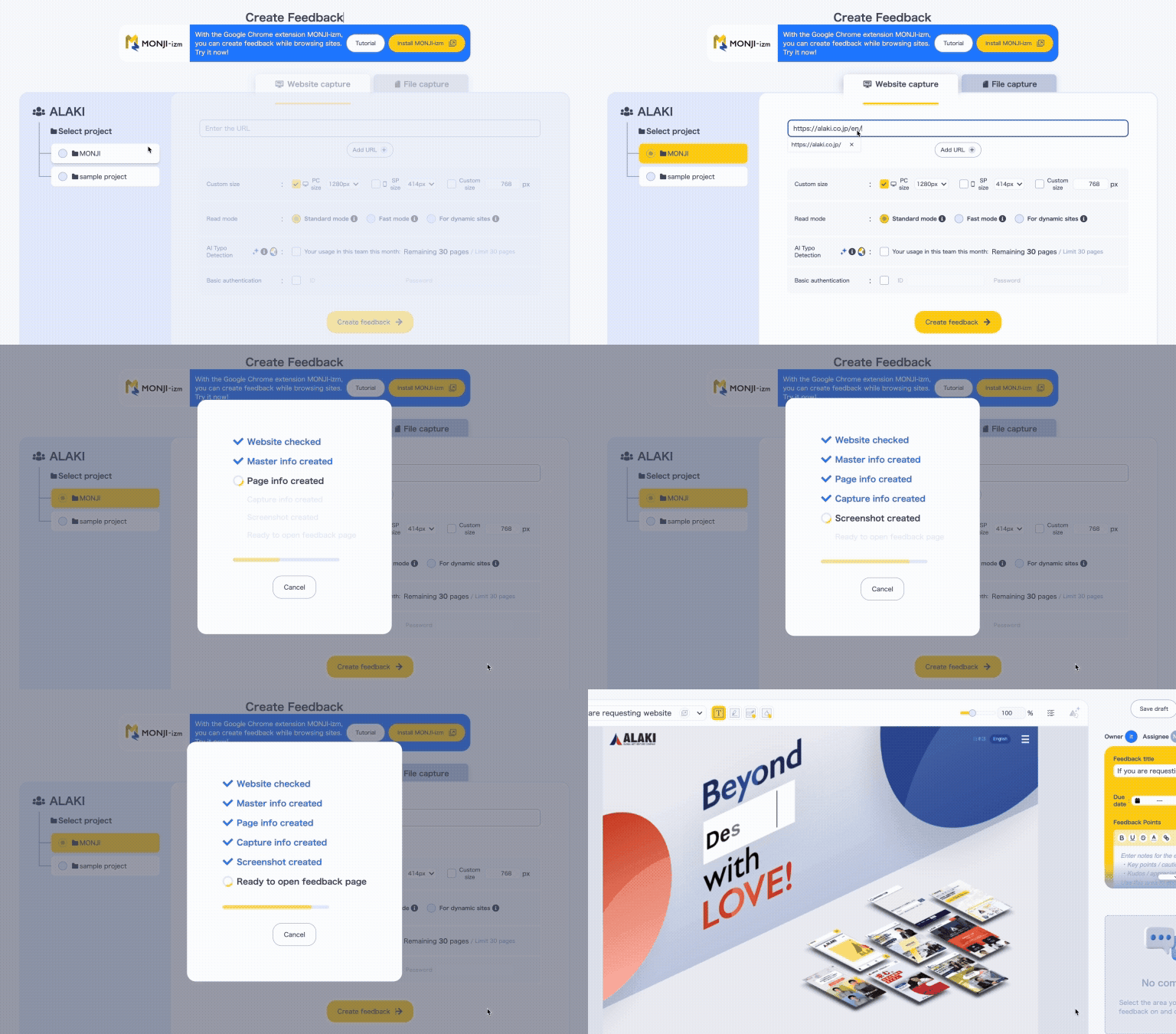
Load the webpage
Just enter the URL to instantly generate a screenshot. No need to capture screenshots, paste them into Excel, or print anything.
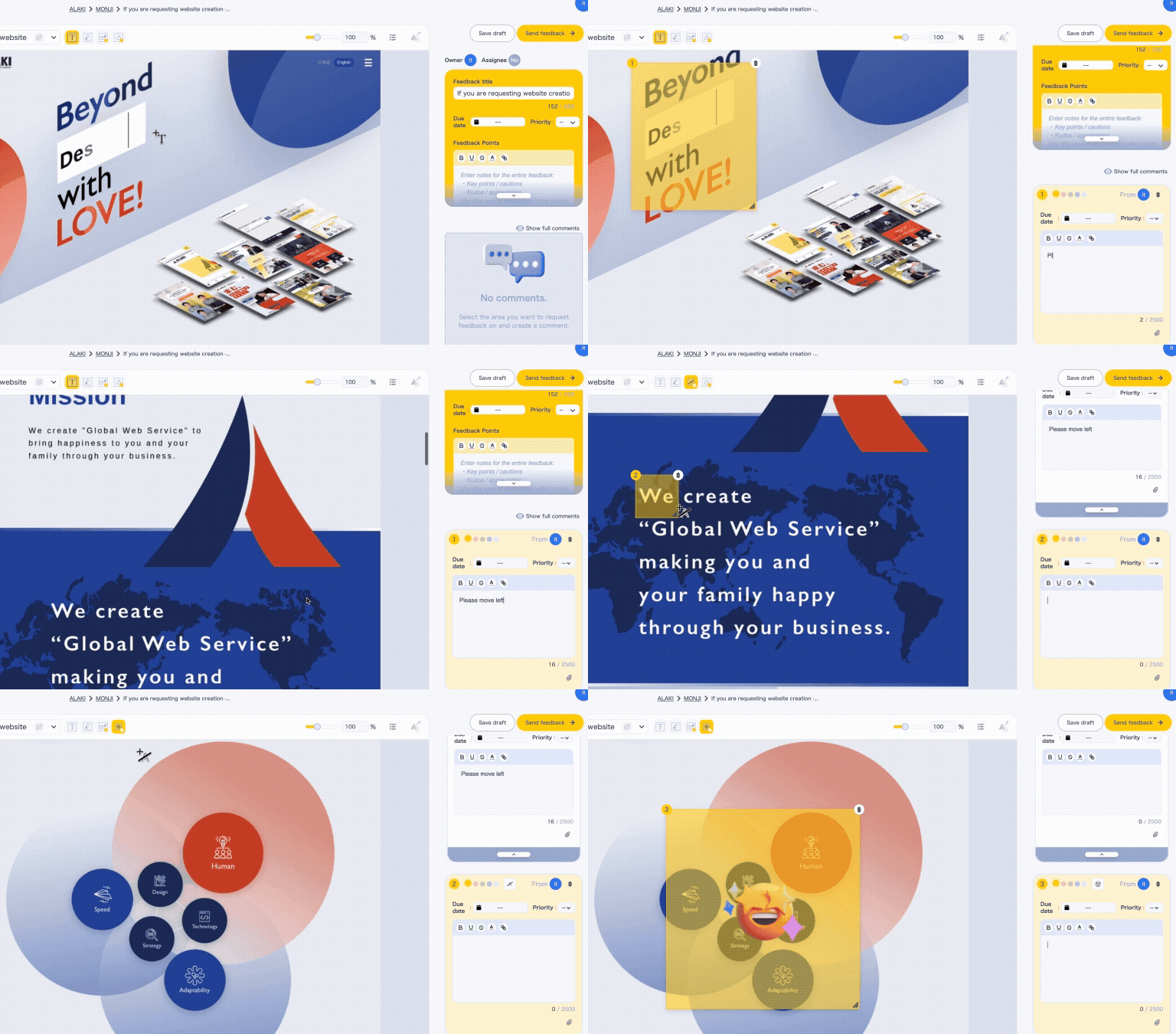
Write your feedback
Write directly on the webpage in your browser to complete the feedback.
This prevents the miscommunication and misunderstandings common with handwritten notes or phone calls.
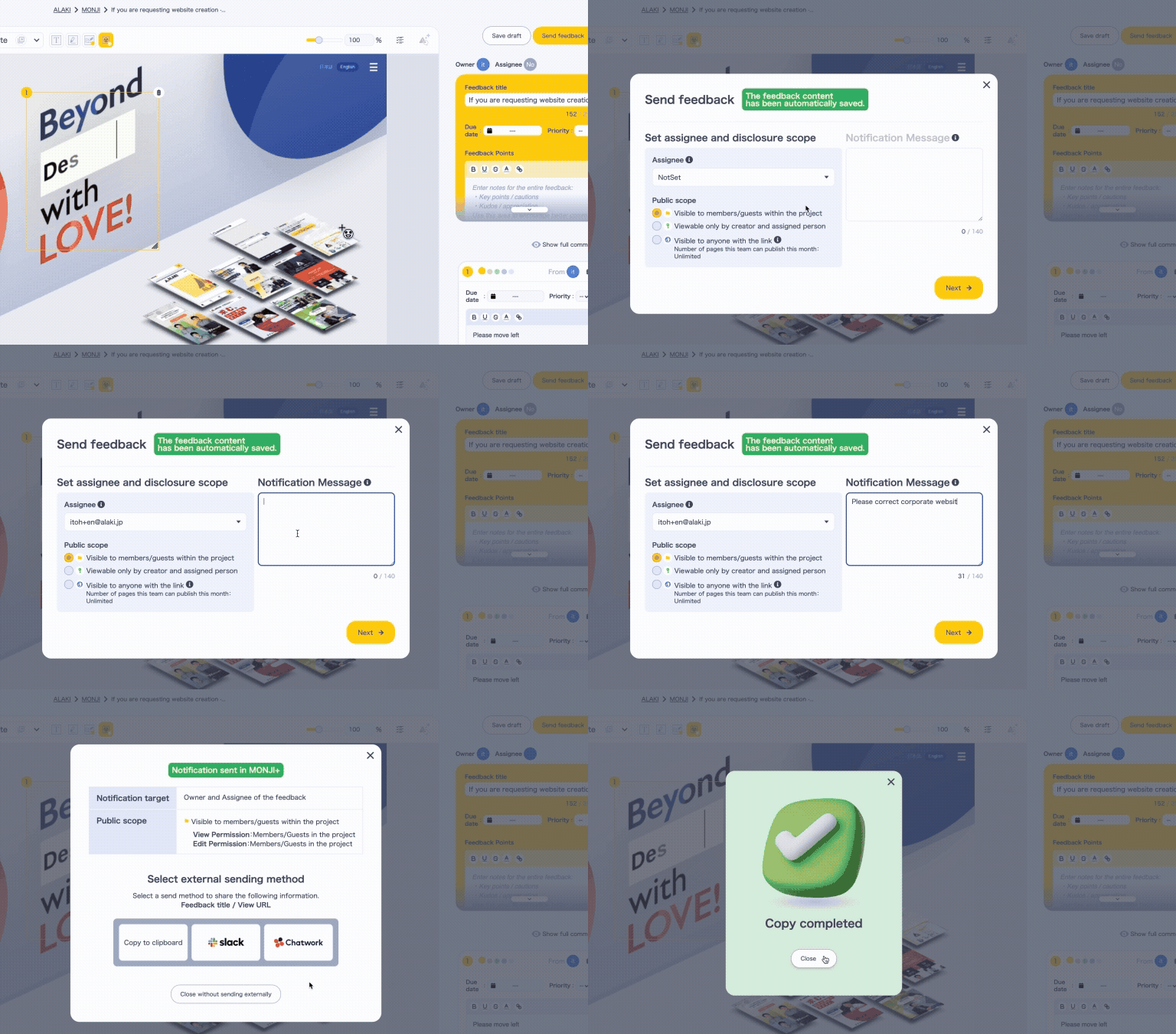
Send to the assignee
Click Send and the assignee is notified automatically.
No more emailing Excel files or calling after a fax—all that friction disappears.
Receiving & Handling Feedback
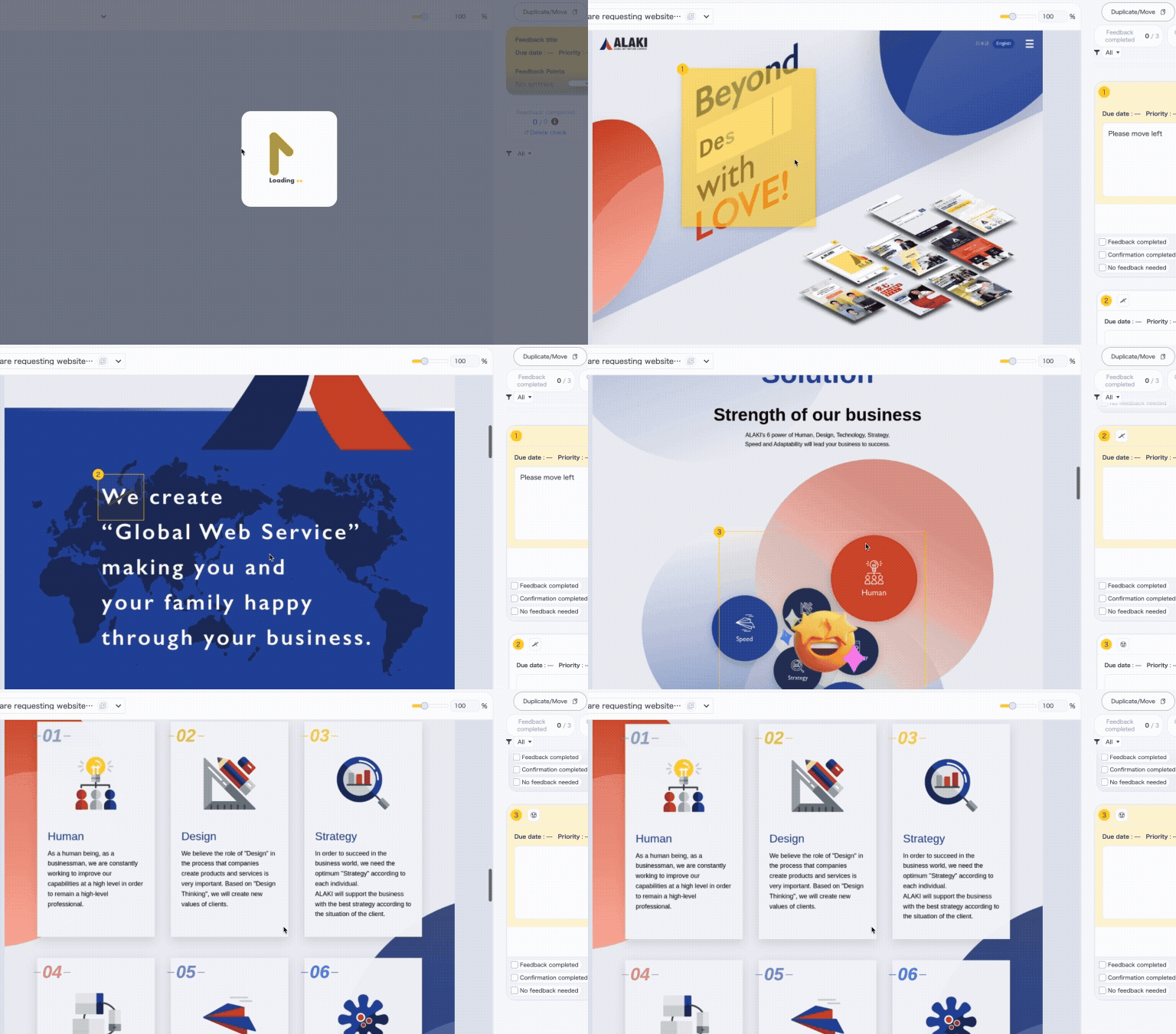
Open the feedback
Simply click the URL to access the feedback instantly. No Excel, PowerPoint, or walking over to check a fax.
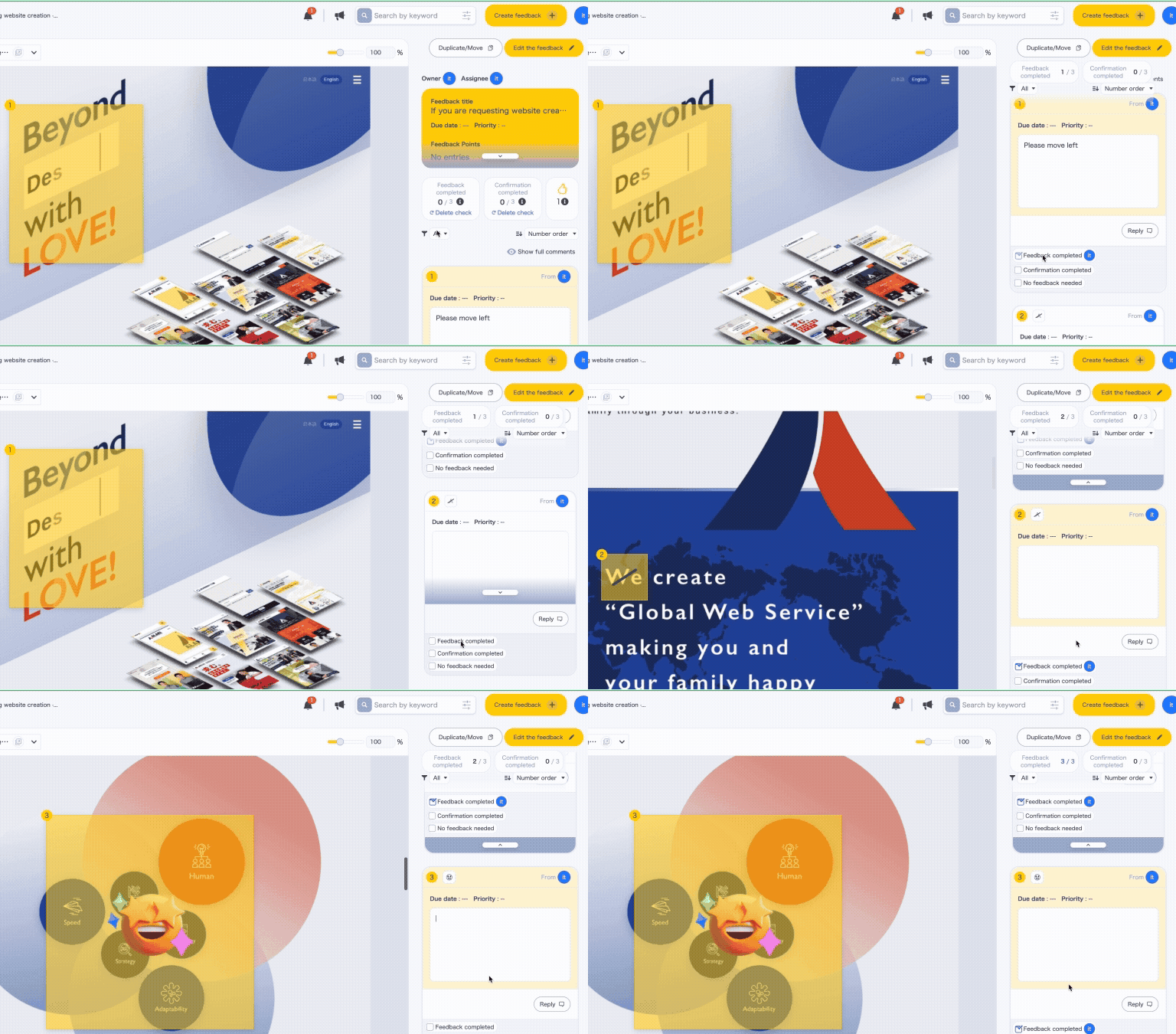
Review and apply fixes
You can see what needs to be fixed at a glance, eliminating rework caused by misunderstandings. No more unreadable fax text or forgotten phone notes.
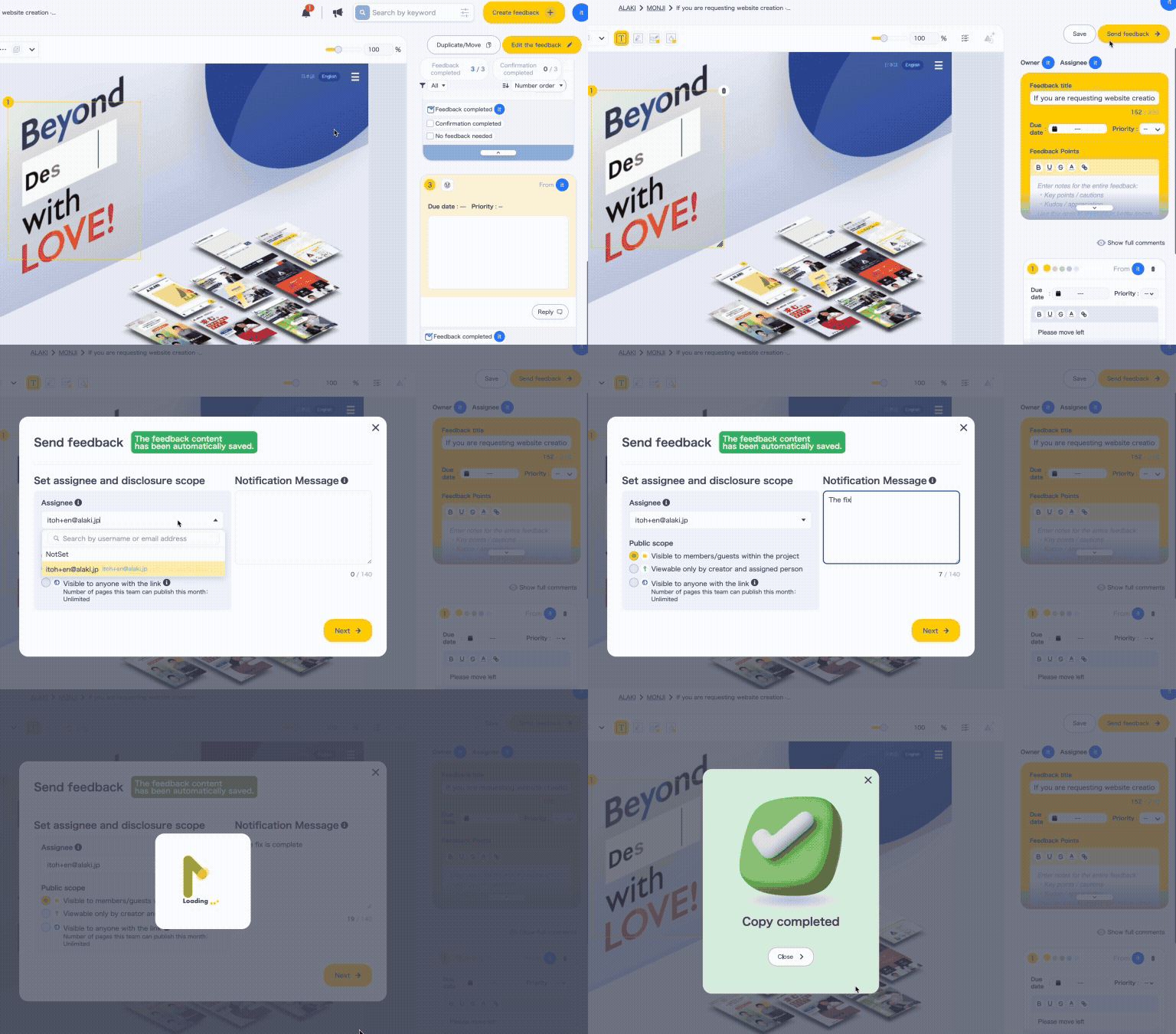
Report completion
Once the fix is done, switch the assignee and the report is complete. No emails or phone updates needed.

Feedback completed!
Useful across every stage of website operations
- DesignMake feedback clear and visual to prevent rework from misalignment.
- TestingManage feedback across multiple projects in one place.
See progress at a glance. - Improvement & UpdatesAccumulated feedback become actionable insights for future improvements.
Use cases by industry
Use case 1
Use for feedback from clients to web production agencies
Use case 2
Use for design confirmation feedback from web production agencies to clients
Use case 3
Use for proposing update content from advertising agencies to clients
Features of “Feedback”
Loading target items

Websites / File Upload
Simply load a website by entering its URL or upload a file to easily create screenshots.

Simultaneous loading of multiple URLs
Load up to 5 web pages at once, saving time by eliminating the need to repeatedly load each page when multiple items need revising.

Simultaneous loading of multiple files
Upload up to 5 files at once. Skip uploading them one by one.

Loading websites with custom size
Specify the window size in pixels to check how the site appears at specific display sizes while creating feedback.

Basic authentication support for websites
Even for websites protected by basic authentication, simply enter the ID and password to load them as usual.

Multi-page PDF loading
Load multi-page PDFs and automatically convert each page into a screenshot to create feedback per page.

Easy website loading with MONJI-izm (Chrome extension)
A Chrome extension that lets you load the website you’re viewing with a single click. The loading speed is also twice as fast as the traditional method.
Creating / Viewing feedback
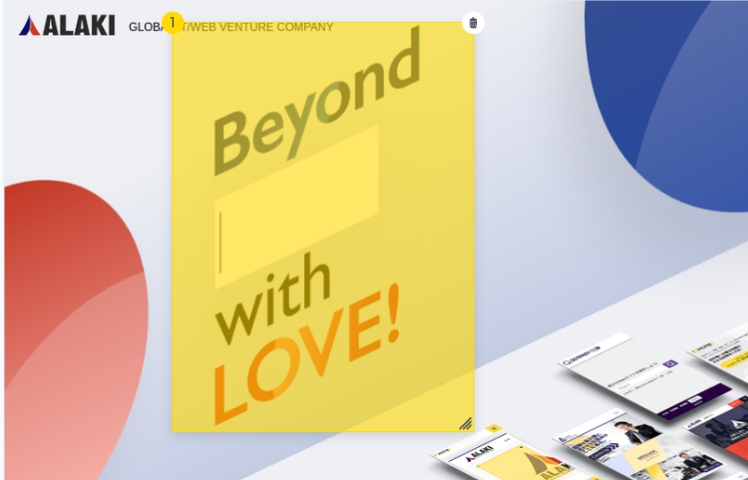
Area selection tool
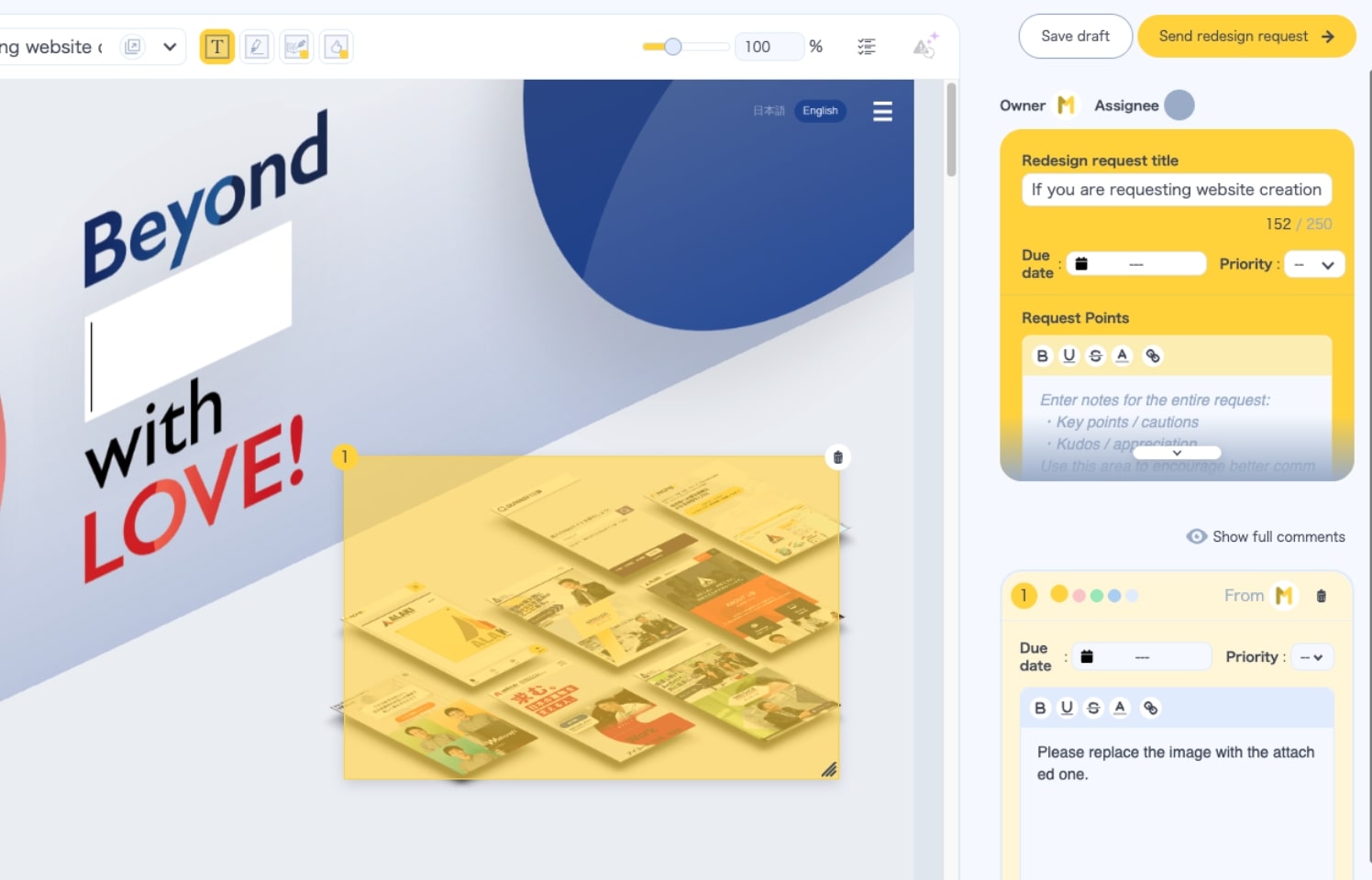
Select and highlight the part you want to feedback by drawing a rectangle directly on the screen. This makes the target clear and helps prevent misunderstandings.

Pin Tool
Click anywhere to drop a pin and leave a comment right on the spot — perfect for flagging a precise point. Want to flag a wider area? The Area selection tool, which draws a box, is still there.

Proofreading marks tool
Common proofreading marks used in design work—such as line break, period, and delete —are pre-registered. This reduces input time and improves both the speed and accuracy of feedback.

Hand-drawn marker tool
Draw freely by hand to quickly share visual nuances that are difficult to express in words.
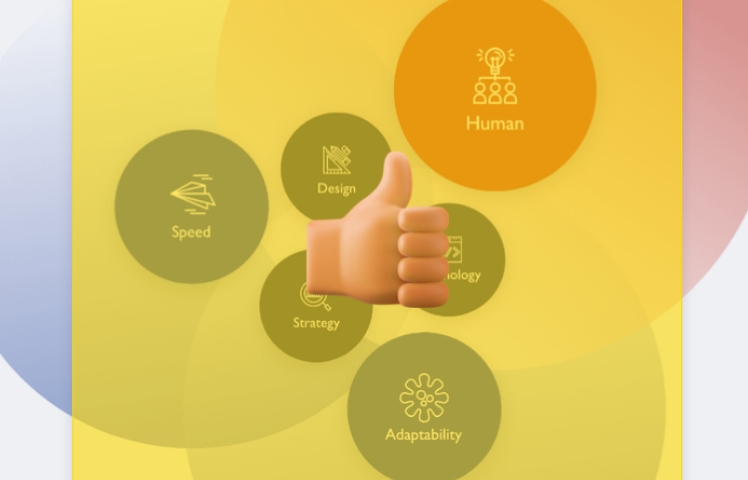
GoodJob tool
Express appreciation for a design with three levels of stamps—Excellent, Great, and Good. MONJI+ fosters a positive feedback culture within your team.
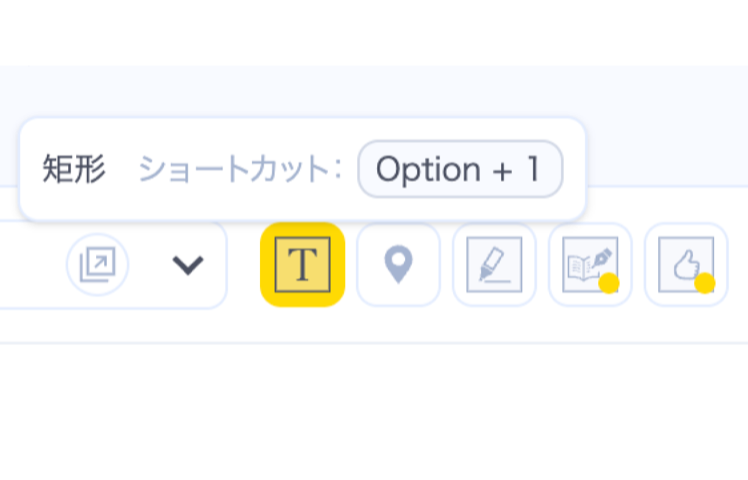
Keyboard shortcuts
Switch tools instantly with Option (Alt) + a number — no mouse needed, so you keep a fast rhythm. ・Area selection tool: Option (Alt) + 1 ・Pin tool: Option (Alt) + 2 ・Hand-drawn marker tool: Option (Alt) + 3 ・Proofreading marks tool: Option (Alt) + 4 ・Good Job (Like) tool: Option (Alt) + 5
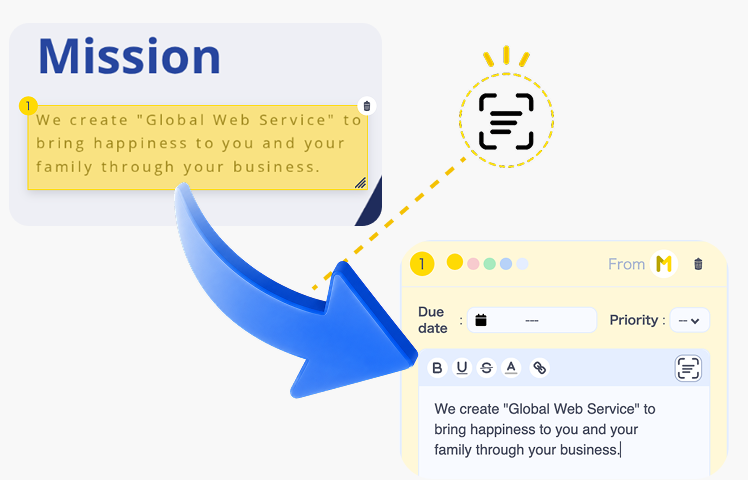
Text Scan
Read the text inside a screenshot or image, review it, and turn it into a feedback comment. Cut retyping and typos.
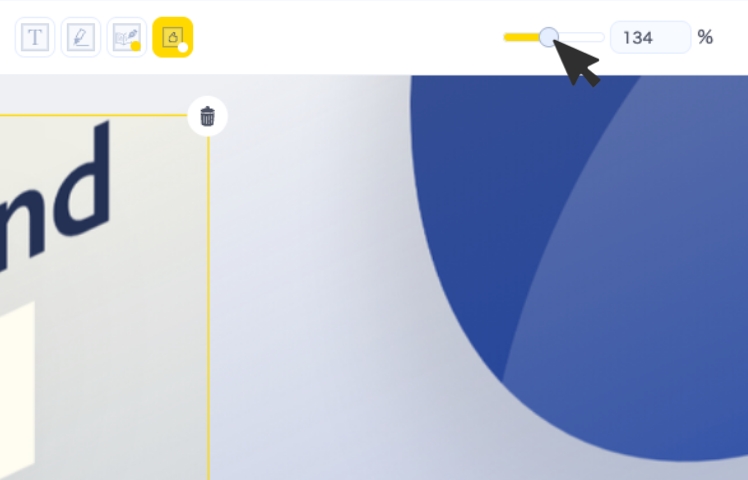
Zoom in / out on feedback targets
Adjust the display scale of loaded pages or files as needed—no need to shrink images or PDFs before uploading.

Priority / Deadline setting
Set a priority and deadline for each feedback item. You can easily understand the order of tasks by sorting them on the feedback list page.

Point input
Add overall notes, cautions, or words of appreciation to an entire feedback. Using these as shared comments helps improve communication within your team.

Collaborative editing
Created feedback can be edited or updated by anyone later. This allows supervisors to refine content or add questions and supplementary notes when needed.

Duplicate and move
Created feedback can be duplicated and moved directly to another project. This eliminates the need for manual copying and greatly improves work efficiency.
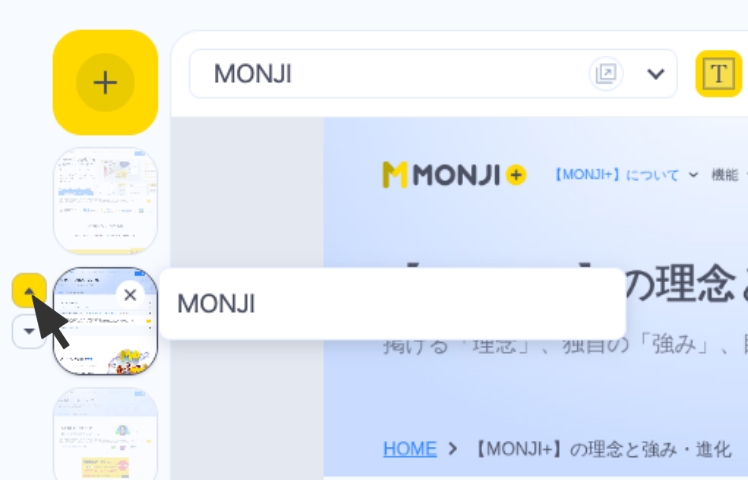
Sort pages
Rearrange pages in one click to keep them in the order that works best for you. No need to delete and reload pages just to change the order.

Comment color coding
Comments can be color-coded in five different colors. By setting color rules in advance, even a large number of comments remain easy to distinguish and understand.

Comment priority / Due date setting
Each comment can be assigned a priority and due date. Even when there are many comments, this clarifies the order of importance and allows you to proceed with feedback tasks efficiently and without confusion.

Comment order sorting
Created comments can be freely rearranged later. You can edit the order to match priorities or the natural flow of communication.

Attach images to comments
Files such as images, videos, or PDFs can be attached to comments, allowing information that is difficult to express in text to be communicated visually and accurately.

Reply to comments
Questions and confirmations can be replied to directly within comments, allowing all feedback-related communication to be completed inside MONJI+. This eliminates the need for external tools and enables smoother collaboration.

Comment progress management
Each comment can be marked as Feedback completed, Confirmed, or No feedback needed. This allows progress to be tracked at a glance, preventing oversights and duplication while improving overall workflow efficiency.

Toggle full comment display
Comment text can be switched between partial view and full view with a single click, making it easy to review even long comments as needed.

Comment text input
Feedback details can be entered as text. Formatting options such as bold, underline, strikethrough, text color, and hyperlinks are also available.

Filter Comments by Status
Filter comments by their progress status ("Pending Fix", "Pending Review", or "No Fix Required"). Easily see the current status of each comment at a glance and help prevent missed tasks.
Sending feedback

Attach message when sending
A message can be attached when sending feedback. The message appears in the Notifications section of MONJI+, helping facilitate smooth communication.

Issue viewing URL
A dedicated URL for a created feedback can be issued with a single click. Viewing restrictions can also be set, ensuring secure access.

Send to external tools
Created feedback can be sent to Slack or Chatwork. Integration with the tools you already use makes sharing and confirmation even more efficient.
Managing feedback content

Feedback list
A high-performance Feedback List screen supports various filtering and sorting options. Thumbnails provide an at-a-glance overview, making progress management smoother and more efficient.

Draft list
Feedback in progress can be viewed in a list. Draft feedback is visible only to you, not to other members or guests, allowing you to work securely and preventing forgotten submissions.

Due date calendar
Feedback can be intuitively managed in a calendar view. Two display options — monthly and biweekly — make it easy to grasp overall schedules and manage short-term progress.

Feedback list filtering / sorting
On the feedback list screen, you can filter by status, owner, or assignee, and sort by update date, creation date, priority, or due date. This makes it easy to quickly find the feedback you need.

Quick edit from the feedback list
Feedback can be quickly edited with a single click, without opening the edit screen. You can easily update items such as title, assignee, visibility, priority, and due date.

Update notifications
Receive notifications in MONJI+ for feedback you’re assigned to, involved in, or have sent. Helps prevent oversights and keeps responses smooth.
Related features
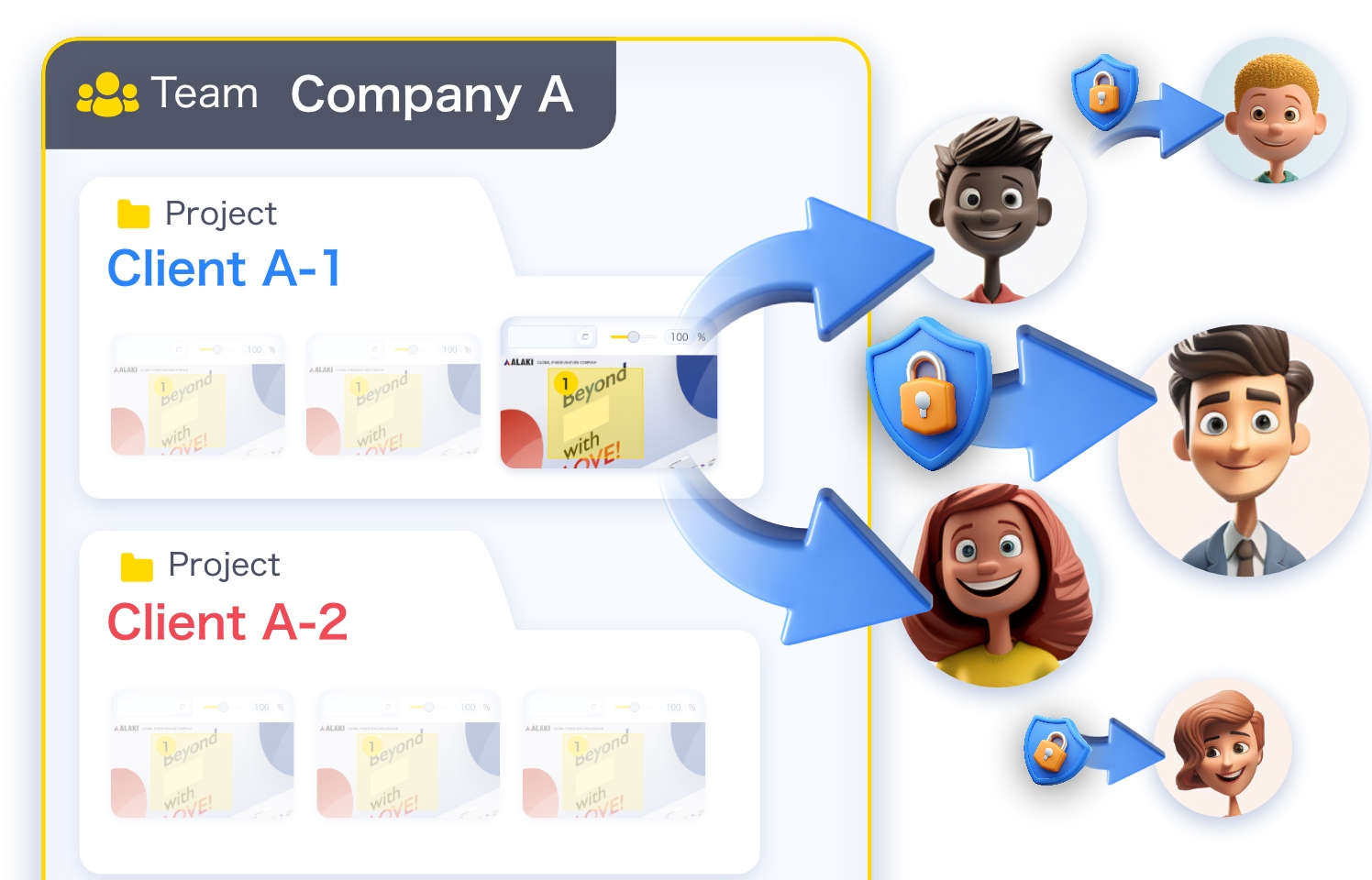
Public link for feedback (with password)
Share and view feedback even without an account or team/project membership.
Text Scan
Read the text inside an image, review it, then turn it into a feedback comment—fewer transcription steps and typos.
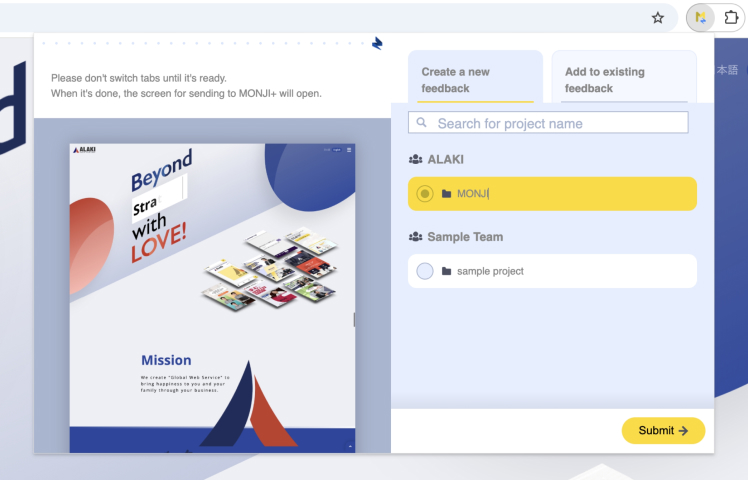
MONJI-izm (Chrome extension)
Works on pages behind login too—faster, smoother feedback.
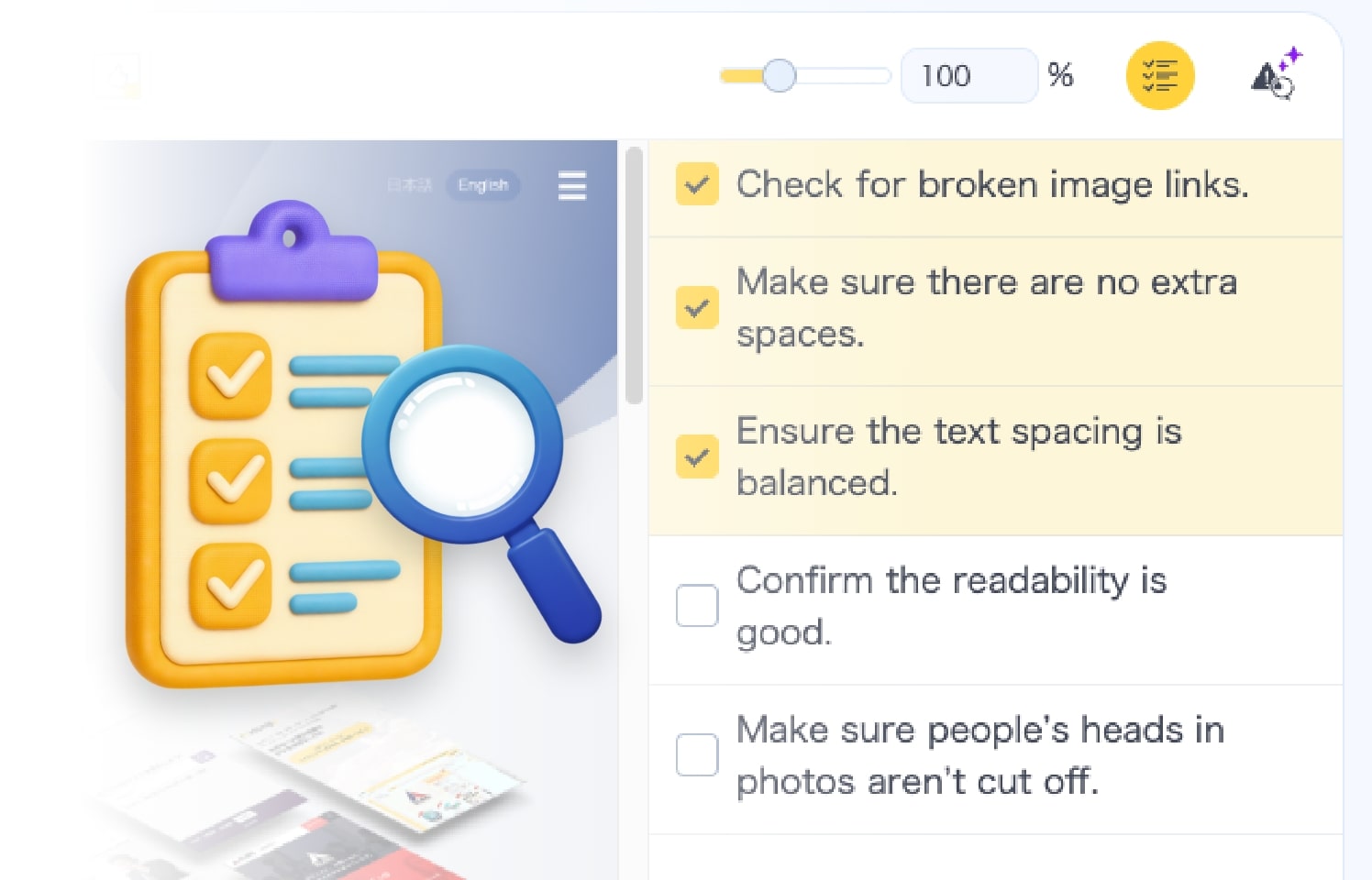
Checklist
Build feedback alongside a checklist. Keep deliverables at consistently high quality.
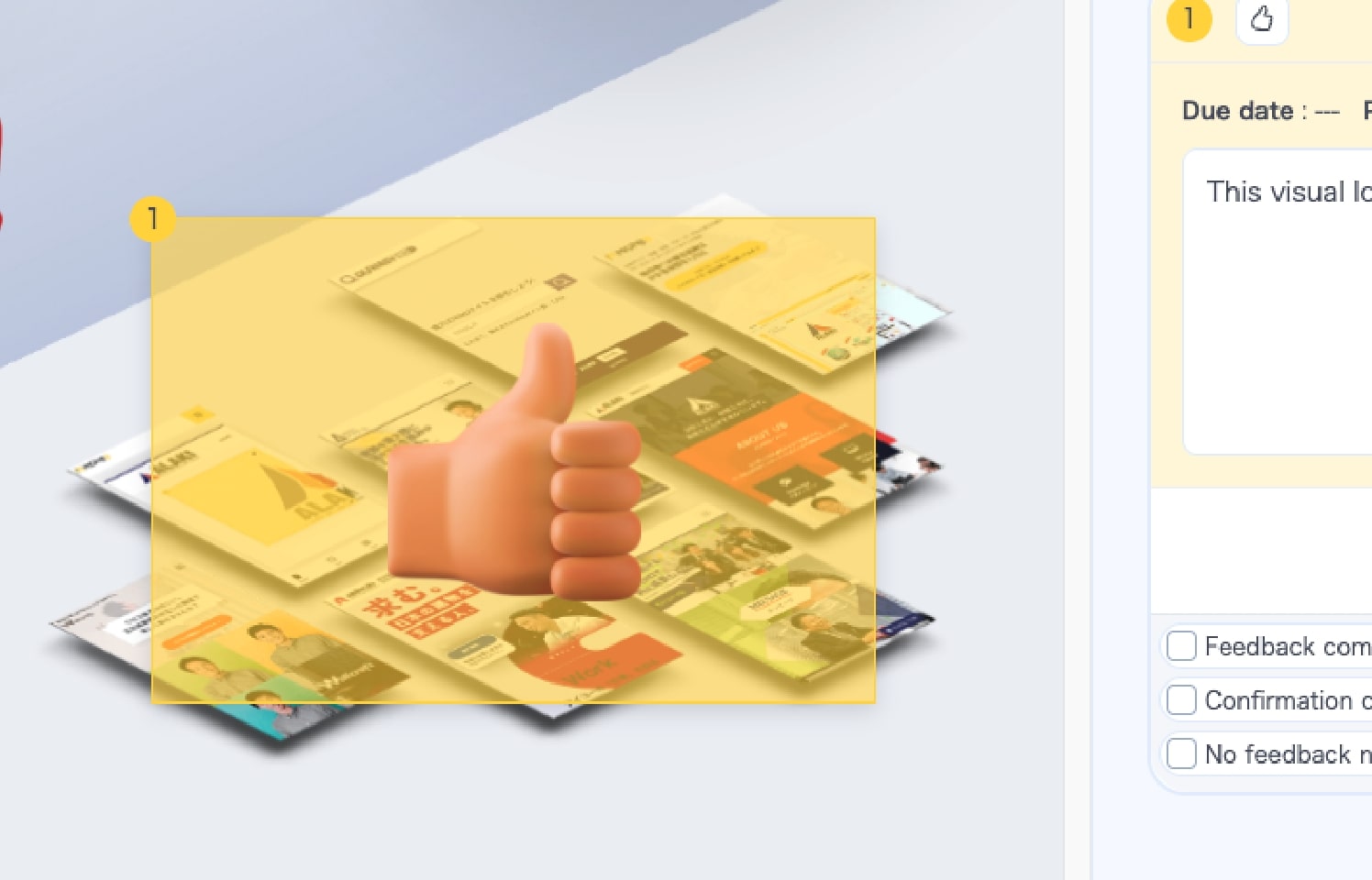
GoodJob
Send three-tier stamps—Excellent, Great, Good—to celebrate great design.
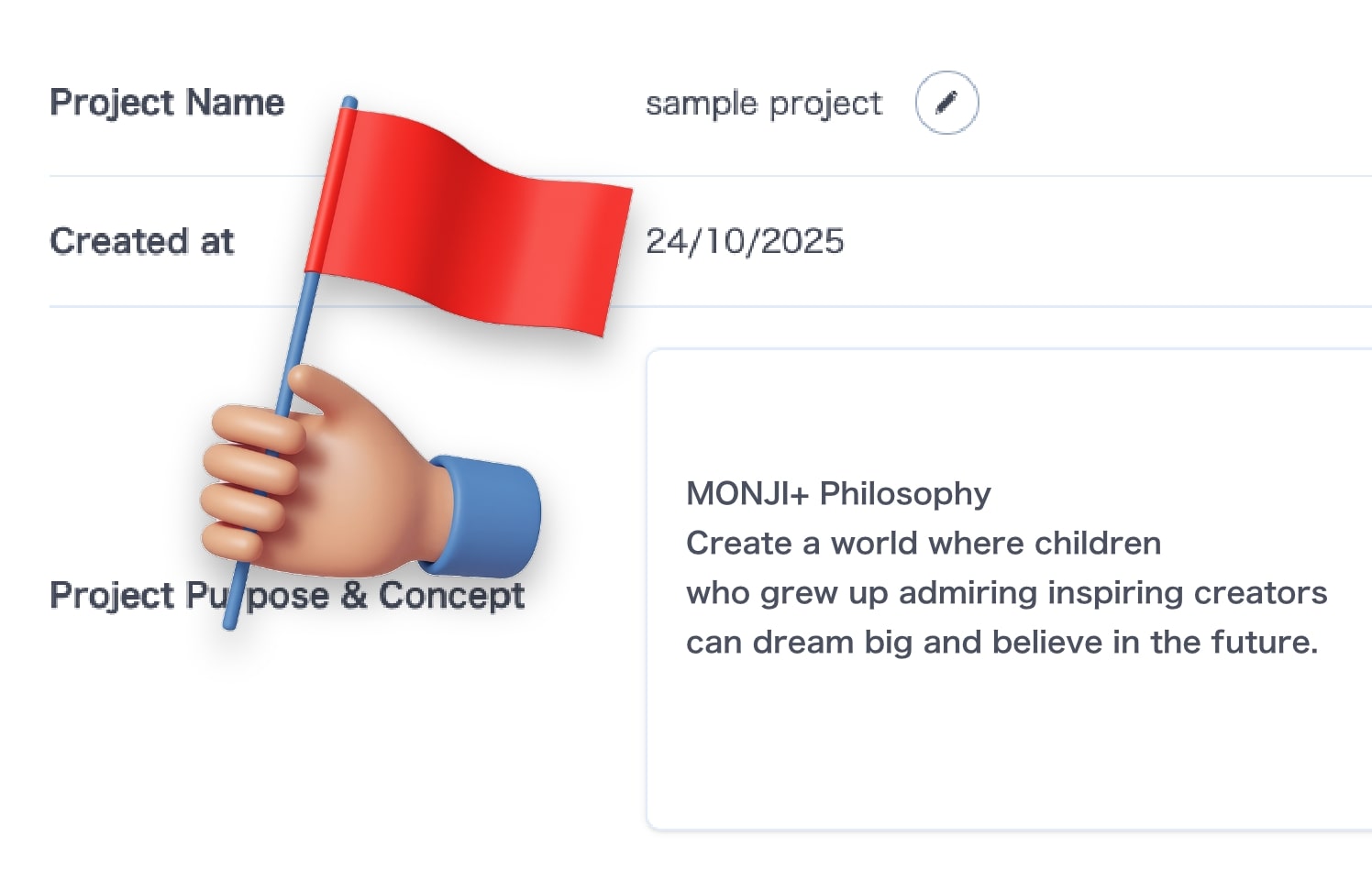
Project purpose and concept
Document and share with the whole team. A clear goal keeps everyone moving forward.